Feedback

Autofill passwords with VMP™ Pass

Automatically save passwords, credit cards, and more with one click. VMP™ Pass will autofill your info the next time you need it.

Free trial for all plans available.

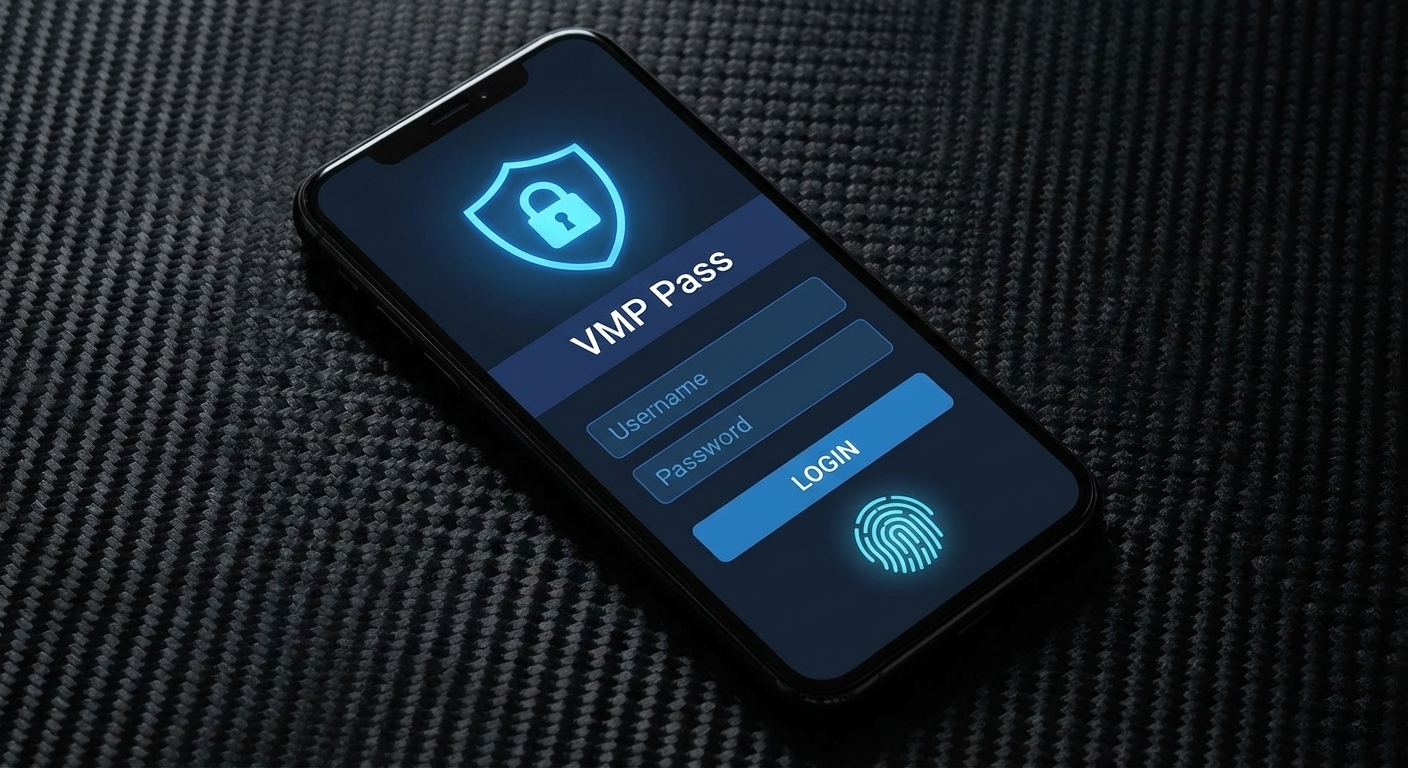
Password Manager Illustration

The benefits of password autofill

Save time by automatically filling in login details

Save a password or shipping address once and VMP™ Pass will securely autofill the information for you.

Increase security by generating and storing strong passwords

Now that you don’t have to memorize your passwords, you can create unique passwords for all your accounts.

Reduce the risk of password theft and data breaches

VMP™ Pass won’t autofill you data on scam websites to protect your sensitive information from hackers and bad actors.

Password Manager Demo

How autofill works?

Save passwords to your encrypted vault

Type in your credentials and log in. VMP™ Pass will ask if you want to save them to your password vault. Save them and they’ll be ready the next time you need them.

Autofill passwords with one tap

Once you’ve set up save and autofill on your mobile device, VMP™ Pass is ready to handle the rest. The next time you log in, tap the VMP™ Pass pop-up and your credentials will autofill into the password field.

Sync your devices for simplified access

Download VMP™ Pass across your other mobile devices, computers, and web browsers. Your password vault automatically syncs so you can autofill passwords from anywhere.

Autofill more than passwords

Credit cards

Speed up the process of checking out, whether you’re shopping on Amazon or vying for limited-time concert tickets.

Shipping addresses

Save personal and business addresses to fill checkout and subscription form fields in an instant.

Banking information

Securely store your banking info in your vault and access it the moment you need it.

Personal information

SFrom subscription services to job applications, you can autofill your name, address, and phone number with one click.

Payment details

Synchronize your passwords and form fills across all your devices

VMP™ Pass browser extensions

  • Google Chrome
  • Mozilla Firefox
  • Microsoft Edge
  • Apple Safari
  • Opera

VMP™ Pass desktop applications

  • Windows
  • macOS
  • Linux

VMP™ Pass mobile applications

  • Android
  • iOS
  • Windows Phone and Platform
  • watchOS (for Apple Watch)

FAQs

When you click on the password field, a pop-up will appear with your login details for the site or app. Simply click on the pop-up and your passwords will be autofilled. If you have a layer of authentication enabled, like Touch ID or Windows Hello, you’ll be asked to authenticate before your login details are autofilled.

Mobile users can also enable inline autofill, which is the standard for Apple iOS devices. Instead of appearing as a pop-up, your login details will appear at the top of your keyboard, allowing for a streamlined user experience.

Every password you save, whether an existing account or a new account, is saved to your VMP™ Pass password vault. You can open the VMP™ Pass mobile app or browser extension to access your saved passwords.

f you’re switching to VMP™ Pass, you can find your passwords in your current service’s password manager: iCloud Keychain, Google Password Manager, Firefox password manager, 1Password, etc. For more information, read how to import passwords from other sources to VMP™ Pass.

VMP™ Pass autofill can be enabled in your password vault’s Settings. In a web browser, simply open your password vault, click on Settings, and Autofill. You enable it by turning it on, instantaneously setting up autofill functionality for your web browser.

On mobile, you open the VMP™ Pass mobile app, go to Settings, click on Autofill, and Enable Autofill. You will then have to access your mobile device’s settings app to turn on the autofill feature and choose VMP™ Pass as your third-party autofill provider. Read through the following tutorials for turning on VMP™ Pass autofill for iPhone and autofill for Android devices.